Edit properties
Last updated: July 9, 2026
Update information about a property to correct errors or reflect changes to your Views.
Edit properties only if you want to change specific attribute values for an existing property. For other operations, use the tools for adding or disposing of properties.
To prevent locking other users out of editing data, complete edits within 48 hours of beginning them. After 48 hours, you will not be able to submit your edits and will need to start over.
Only one person at a time can edit a property. If the edit button is gray, another user is editing the property.
Edit a single property (Video)
In All Properties, hover over the cell you want to edit, click the edit pencil, populate your changes, and save.
(For large sets of data, you can use a filter to find a property more quickly.)
In All Properties, select the checkbox next to the Property you wish to edit
Click on Item Selected and Choose Edit
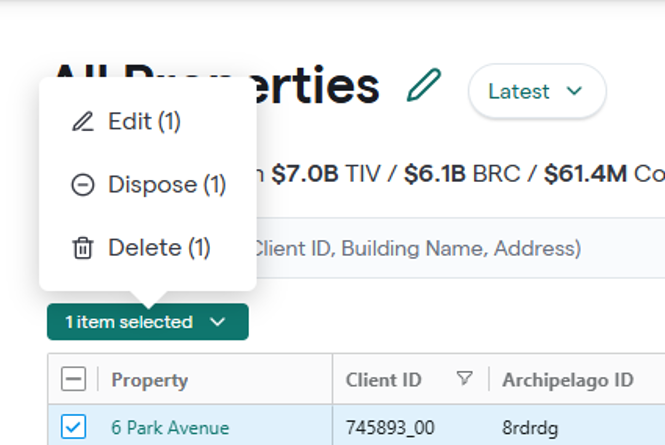
Use Flyout to Edit Required and Additional Attributes
Click Update Property and Return to Views
Edit multiple properties
In All Properties, select the checkbox next to the Property you wish to edit
Click on Item Selected and Choose Edit
Use Flyout to Edit Required and Additional Attributes
Click Update and go to the next Property to edit the next selected Property, and return to Views
Bulk Edit multiple properties in Excel
Choose the properties and attributes you want to edit
In All Properties, click ... > Edit > Edit Properties with Excel File
Under Select properties, click None selected.
Search or filter to find the properties you want to edit:
• To search, type a query in the Search Properties box.
• To filter, click Show only properties matching... to create and run a filter.
Choose the properties you want to edit.
Click the back arrow ← at the top of the panel.
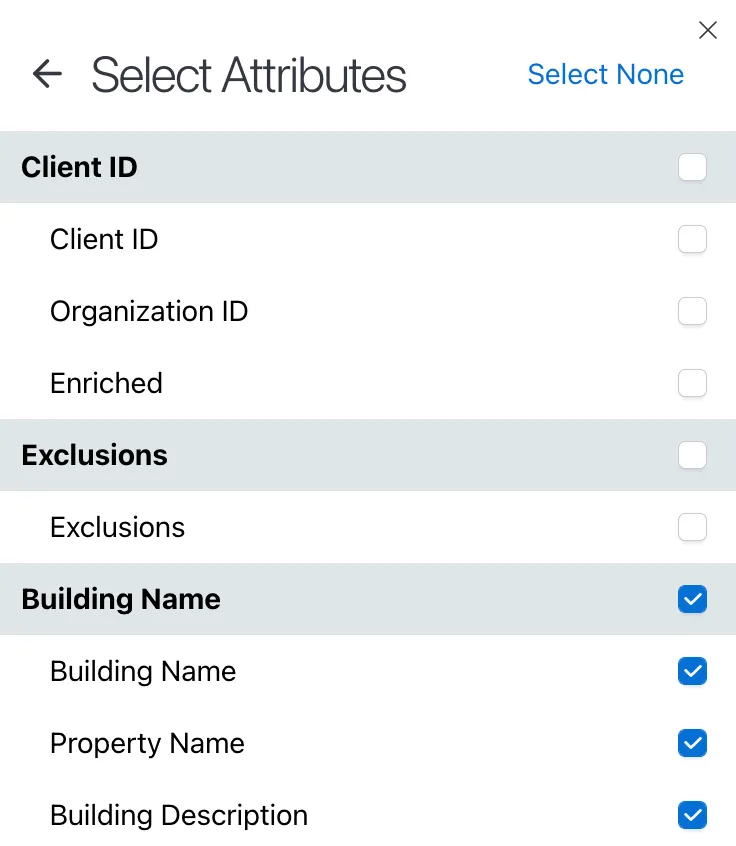
Under Select attributes, click None selected.
Choose the attributes you want to edit values for. You can select a parent attribute to select all of its child attributes.
Click the back arrow ← at the top of the panel.
Edit the data
Click Start Editing.
An Excel spreadsheet will automatically download. Open it to see the existing data you've selected to edit for the property.
Update any white cells in the spreadsheet to edit attribute values for the properties you selected. You can only edit white cells, as these correspond to the attributes you selected for editing.
Some cells include dropdown lists for the COPE and secondary COPE attributes. You can also see the available options on the second page of the spreadsheet.
Upload your edits
When you are done editing data, save the spreadsheet and navigate back to Archipelago. If you closed the Edit flyout, click ... > Edit > Edit Properties with Excel File again.
Upload the spreadsheet you edited using the light gray box in the middle of the panel. You can drag the file into the box or click the box to browse to the file location.
After you upload the spreadsheet, click "Submit edits" at the bottom. Archipelago will validate your data and send you an email with the results and any values you might need to correct.
When Archipelago validates your data, the platform will apply your changes. This can take up to 20 minutes.
Then, you can view updated information about the property you added using the grid, tile, or map views.