Filter Data
Last updated: July 9, 2026
See only the information that matches the criteria you specify. Use queries to filter data by specific property attributes to help with detailed analysis.
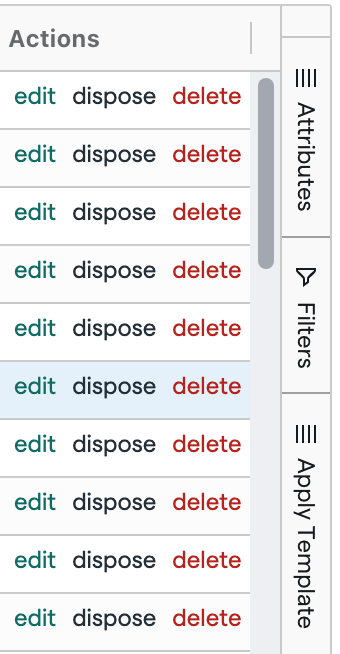
In a view, click Filters.
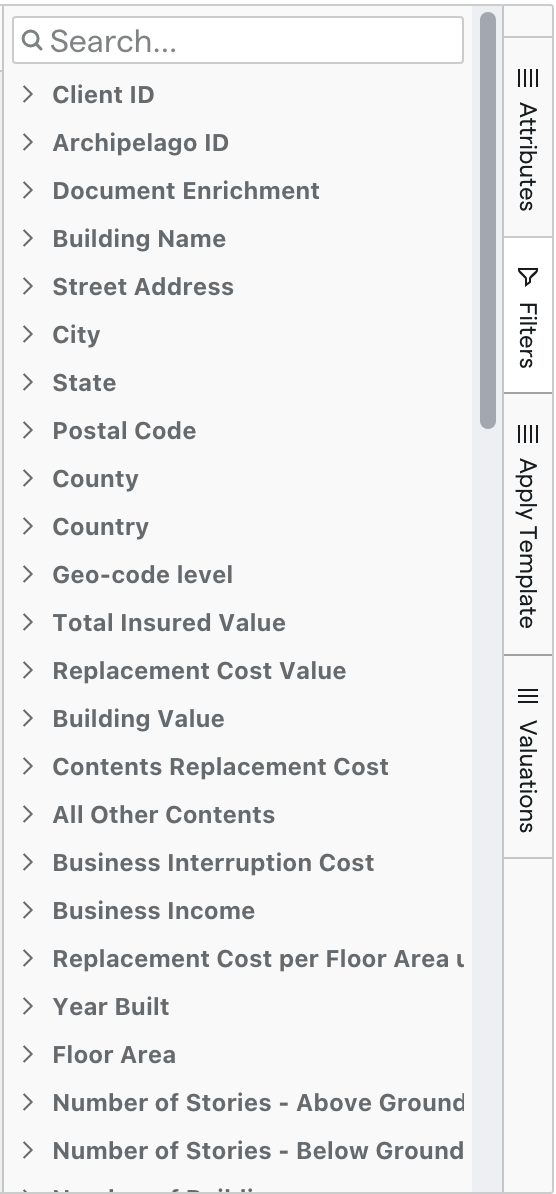
Select the property attribute you want to filter by. You can also search the attribute by using the search bar.
Either click on what you'd like to filter by or use the filter operator logic to filter. Refer to our filter operator reference for more information about each operator. You may also have to input a value if you are filtering by a number.
Your SOV view will automatically update with the filter overlaid.
You can add multiple filters at the same time to further narrow down your data. Rules are combined as "AND" conditions, so filters will only return properties that meet all the rules you specify. You can close each filter individually or hit "Clear all" to clear all

You can apply these filters to data you export as a spreadsheet.
You can clear a filter at any time, which will also remove the filter from these visualizations. When you navigate away from the SOV, any filters you applied will clear.
Duplicate Review
The Duplicate Review panel helps identify and review properties with duplicate addresses. To access duplicate review, select Duplicate Review from the right navigation panel in the property grid.
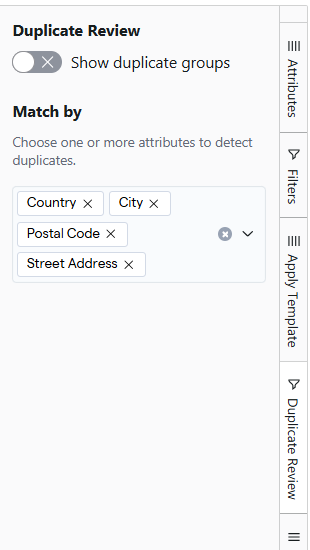
By default, duplicate detection uses the core address fields:
Country
City
Postal Code
Street Address
You can optionally add additional attributes to Match By criteria, such as Specific Occupancy or Number of Units, etc., to handle the cases where valid buildings have the same address.
To review duplicate properties:
Open the Duplicate Review panel
Select Match by attributes
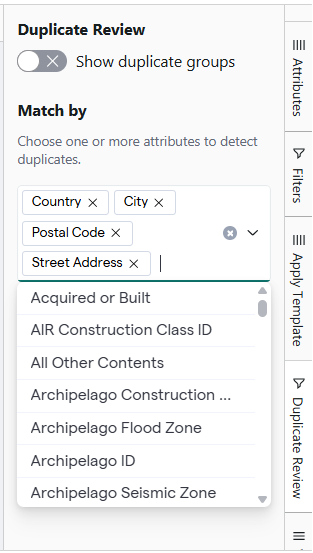
Enable the toggle Show duplicate groups to display properties identified as potential duplicates
Expand a duplicate group to review the records
Use Compare to review differences between the records.
Duplicate groups are formed based on the selected match criteria.