Collections
Last updated: July 9, 2026
Use Collections to quickly update property data in bulk. Download a spreadsheet of your assigned properties, edit approved fields, and upload the file to apply changes.
Create collection periods to define what needs updating, filter and organize tasks, and include view-only fields for reference. Once a collection starts, tasks can be assigned to the right users so updates are completed accurately and on time.
Administrator Setup
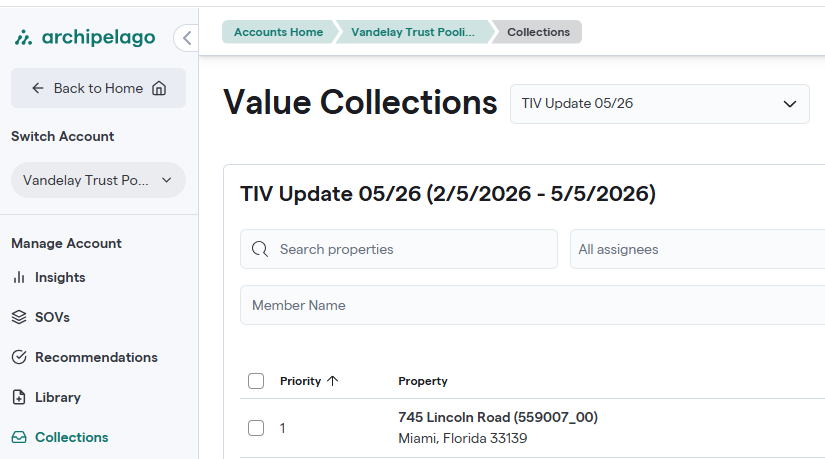
Get Started by Creating a New Value Collection Project
Open the account and select Collections from the left navigation
Select Manage Value Collections
Click +Create New Value Collection
Select a start and end date for the collection period
Choose property attributes that need to be edited
Choose property attributes to filter collection tasks
Choose property attributes that will be view-only (these will appear in files downloaded, only select collections, but cannot be edited)
Click Save on the bottom right

Assign Users to Contribute to the Project
If you have multiple team members that need to contribute to the project, first ensure that they have been set up with access (Manage Users and Roles).
Then, select properties using the check boxes and assign tasks.
Note: If users are assigned the Contributor role, they will automatically be assigned the Collections tasks that correspond to their assets

Now you're ready to share the steps below with your team!
Contributor Task Completion
Viewing your tasks
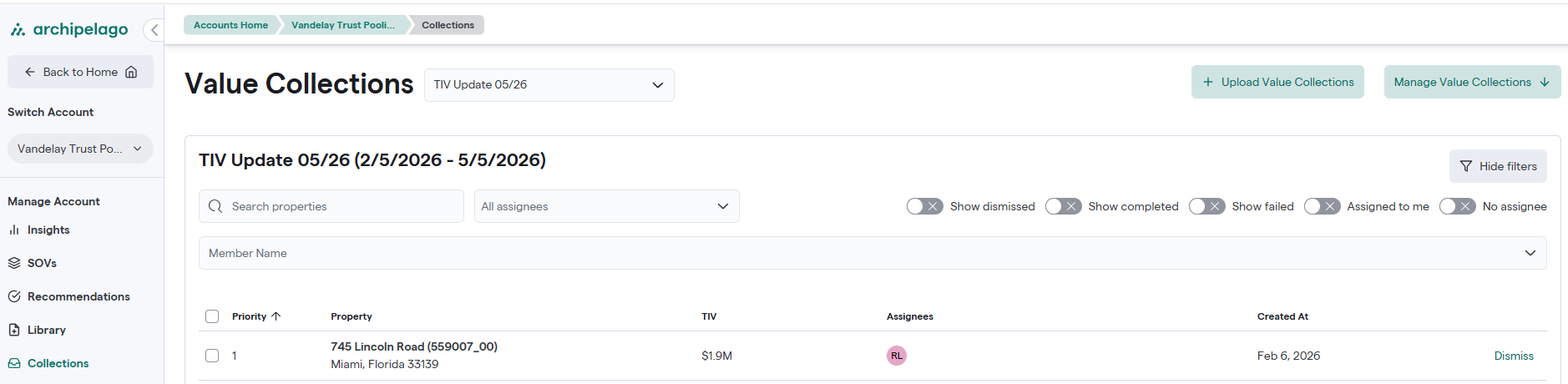
Only select Collections from the left navigation.
You will see your assigned value collection tasks here. Each task represents an asset within your portfolio.

Filter or Toggle to change the view on your screen
To begin making edits, choose one of the two options below:
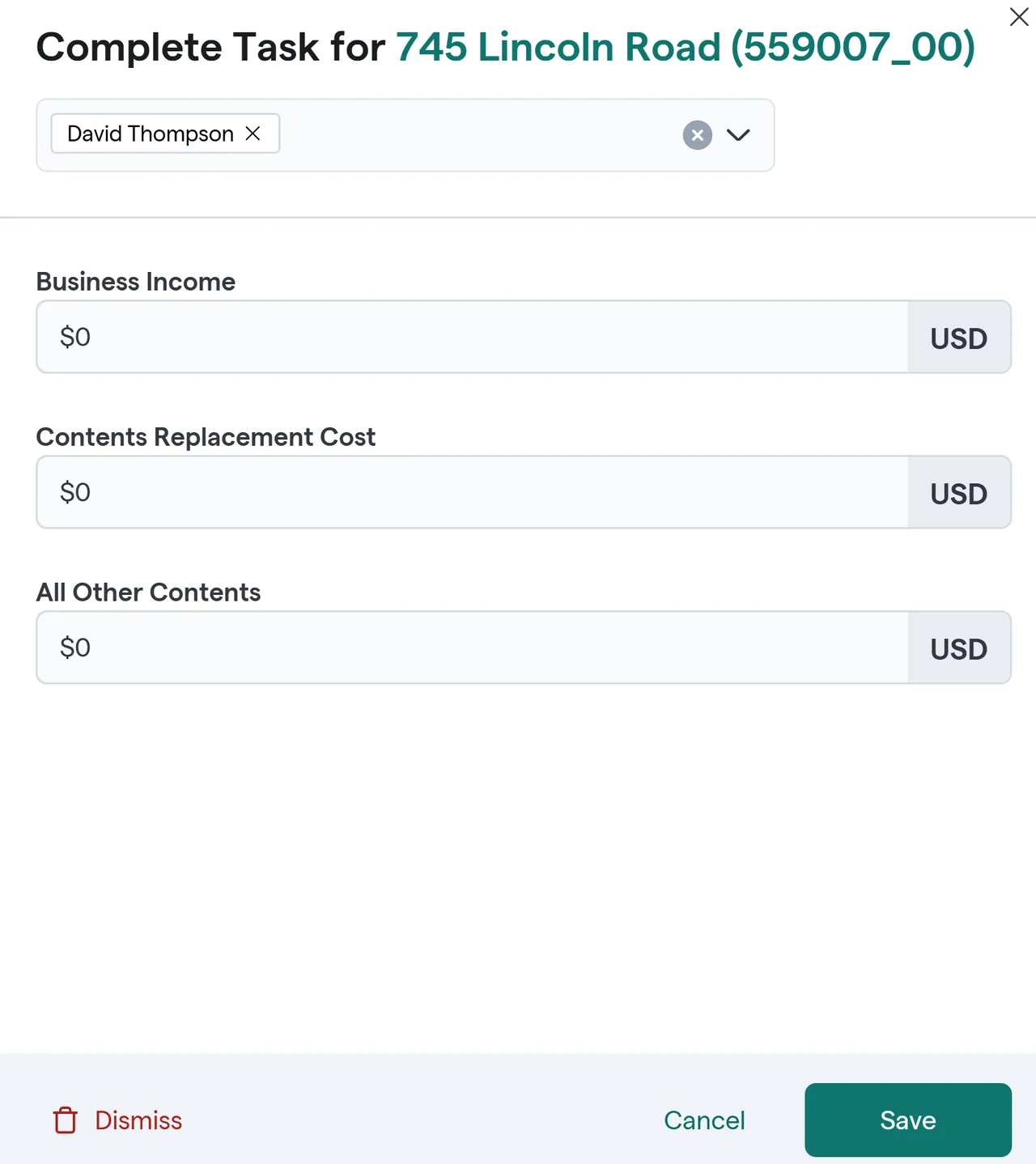
(1) Click on a property and update
(2) Select properties using the check boxes, then click on Download Value Collections.
An Excel spreadsheet will be automatically downloaded to your computer upon selection. Save a copy of the spreadsheet to your computer. Open it to see your existing property data.
Note: Cells in white are available to be edited. Cells in gray should not be edited (and any changes to them will be ignored). Do not remove, add, or move the columns in the template as this will result in errors when trying to submit your changes.
Update the file with new values and Save. (Only cells in white can be edited).
Click on Upload Value Collections and Drag & Drop the file to apply changes.