Manage Users and Roles
Last updated: July 1, 2026
The Users page allows you to manage users, including adding new ones and assigning roles.
User Management Video
User Management
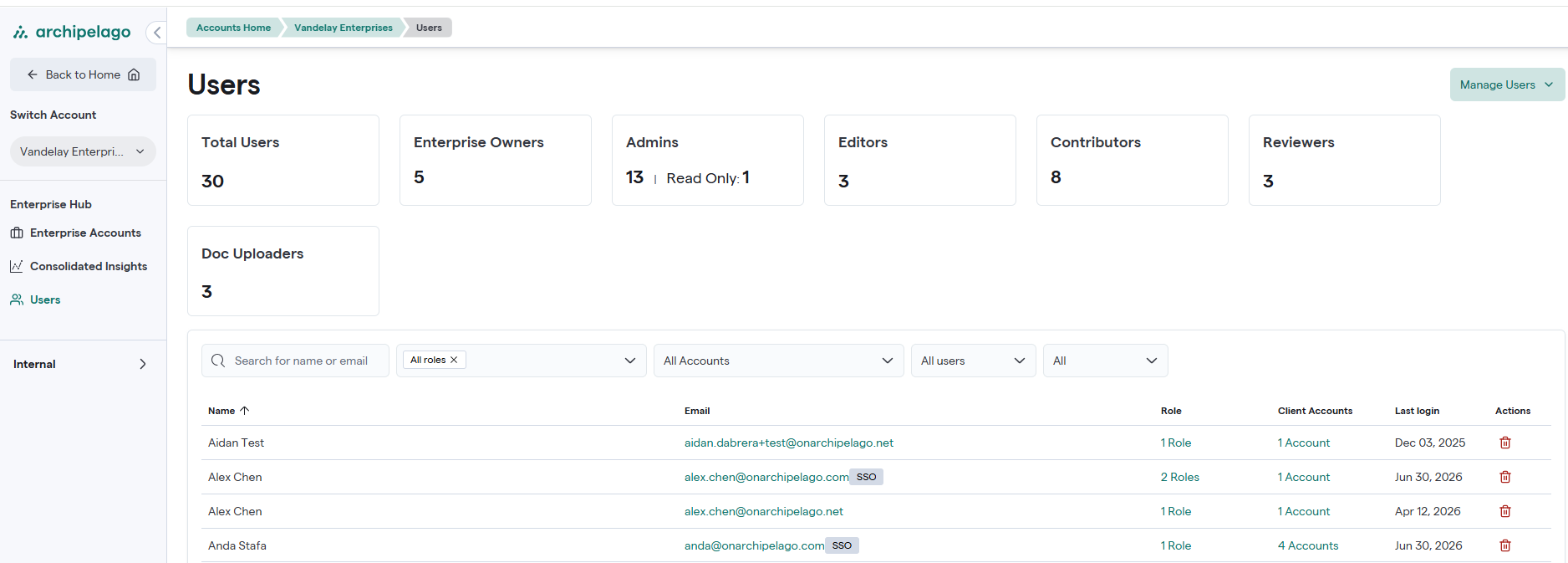
The Users Page is accessible through the navigation menu. The page shows all Users belonging to an Enterprise Account, Direct Customer Account, or Underlying Customer Account.
Add a New User
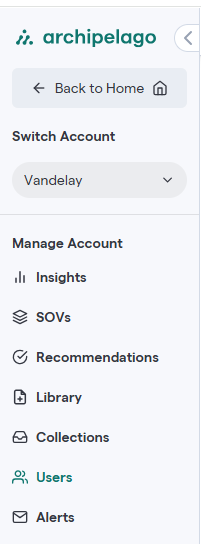
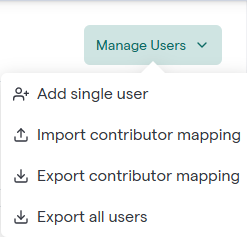
To add a new User, navigate to the Users page from the main left navigation menu and then click the "Manage Users" button in the top right corner of the screen. In the flyout, add an email for the new user and select the desired user role. You can only assign roles with lower permissions than your own.
Assign a User Role
Role assignment is an important part of the user management process. A role is assigned when the new user is created or when the user is required to have additional permissions. To change a user role, navigate to the Users page, search for and select the user, and update the selected role in the flyout.
Roles and Permissions
Archipelago has roles to fit every customer or user.
Leader - Leaders with a team or teams that manage a book of business.
Admin - Accountable lead on an account; should manage roles for supporting team members.
Editor - Team member supporting an account and needs full edit access.
Contributor—Users who are responsible for editing or adding specific properties but don’t need access to the full SOV.
Reviewer—Users who only need to view the SOV or export SOV-related files, such as model-ready files.
Doc Uploader—Users who only need to upload documents associated with an SOV and do not need to view SOV data.
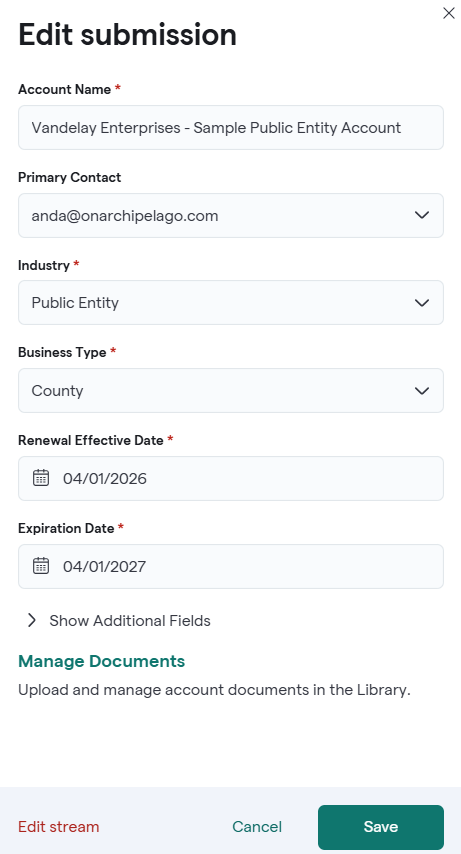
Changing Primary Contact
Update the primary contact to ensure the right person is associated with a client account. Only admins can be a primary contact.
Navigate to Client Accounts.

Locate the account you wish to update
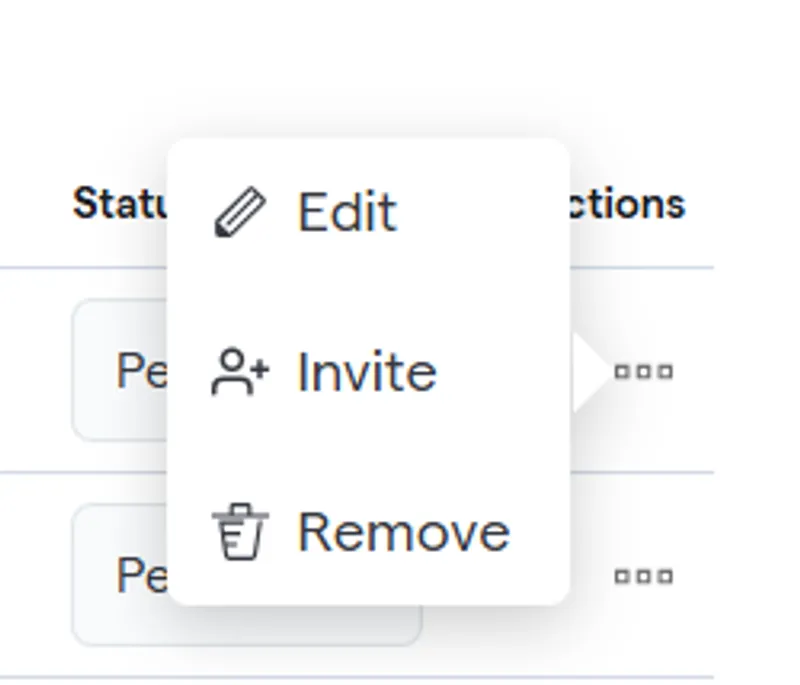
On the far right under Actions, click the three dots (...) and select Edit.
Use the dropdown to select the new primary contact.
Click save