Viewing Snapshot Data
Last updated: June 30, 2026
Snapshots capture data at a moment in time, update the available view for non-admins, and allow change analysis by comparing two points in time. Using naming conventions will make it easier to know which snapshot to choose and understand what you are viewing.
View Comparisons between 2 Snapshots:
Open the desired SOV from the SOVs page.
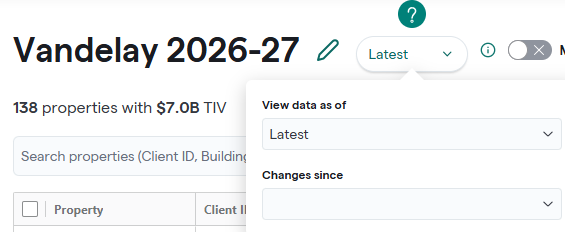
Click the Latest dropdown.
Under View data as of, select the snapshot you want to compare.
Under Changes Since, select the earlier snapshot.
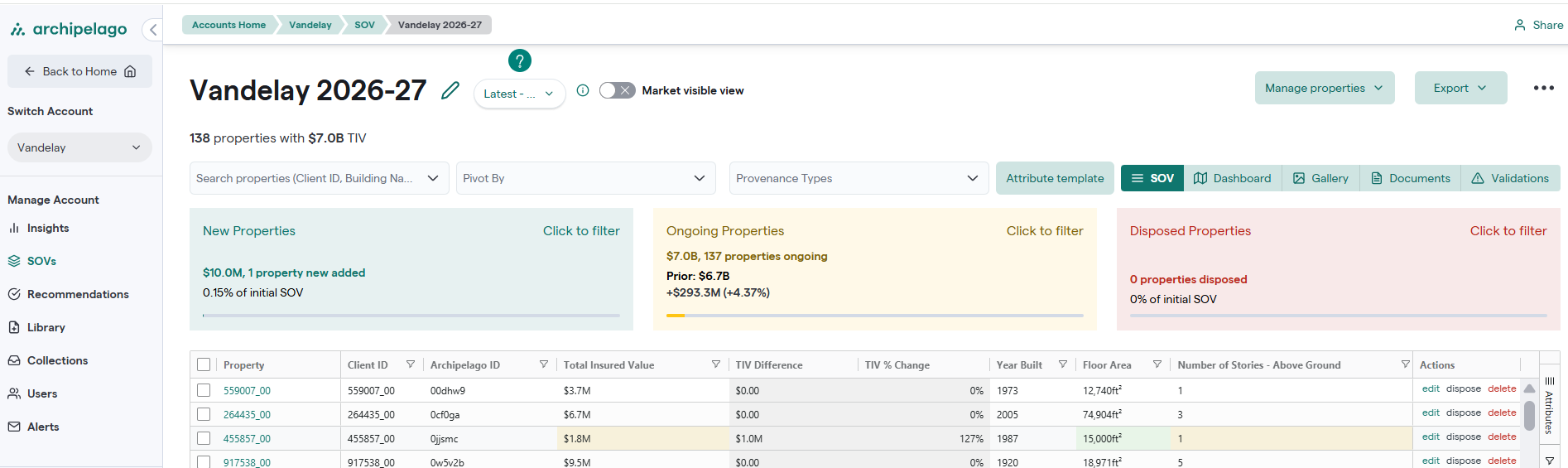
The comparison view displays:
Ongoing – properties that exist in both snapshots.
New – properties added since the earlier snapshot.
Disposed – properties removed between the two snapshots.
Expand any section to view the property list and drill into property details.
View a previous snapshot:
If your user rights allow, you can view the data at a previous point in time.
Open the desired SOV.
Click the Latest dropdown.
Under View data as of, select the snapshot you want to view.
Leave the Changes Since field blank.
The SOV grid will display the data as it existed when that snapshot was taken.