Snapshots
Last updated: July 9, 2026
Snapshots capture data at a moment in time, update the available view for non-admins, and allow change analysis by comparing two points in time.
Creating a snapshot
Within SOV View, click the Edit pencil next to your SOV name.
Click Snapshots.
Click Create New Snapshot.
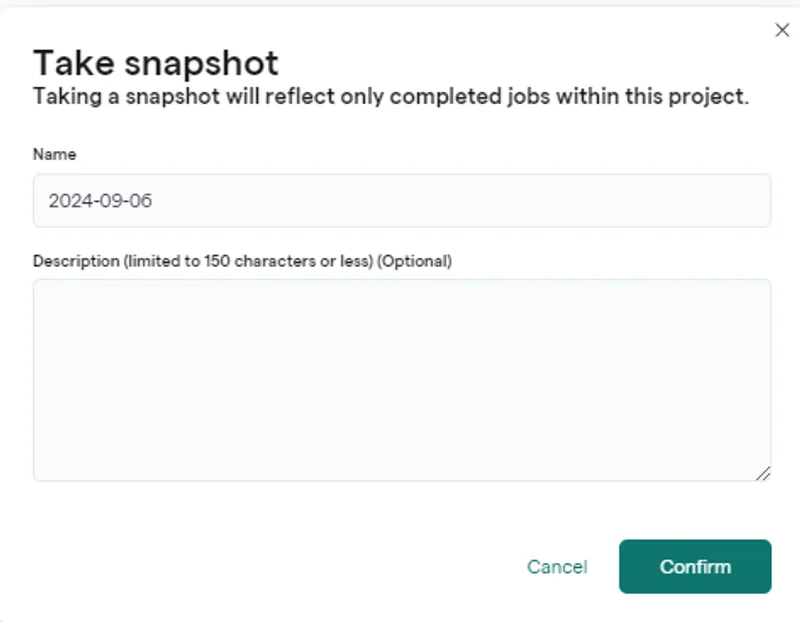
Provide the snapshot name and description and click Confirm.
You will want to follow a naming convention, for example, using the data of the snapshot, and for a submission snapshot, using a format such as 2024 Submission - XXXX, where XXXX is the date.
Editing Snapshot
Within SOV Views, click the Edit pencil next to your SOV name.
Click Manage Snapshots.
Click the Edit button at the left of the snapshot.
Choose:
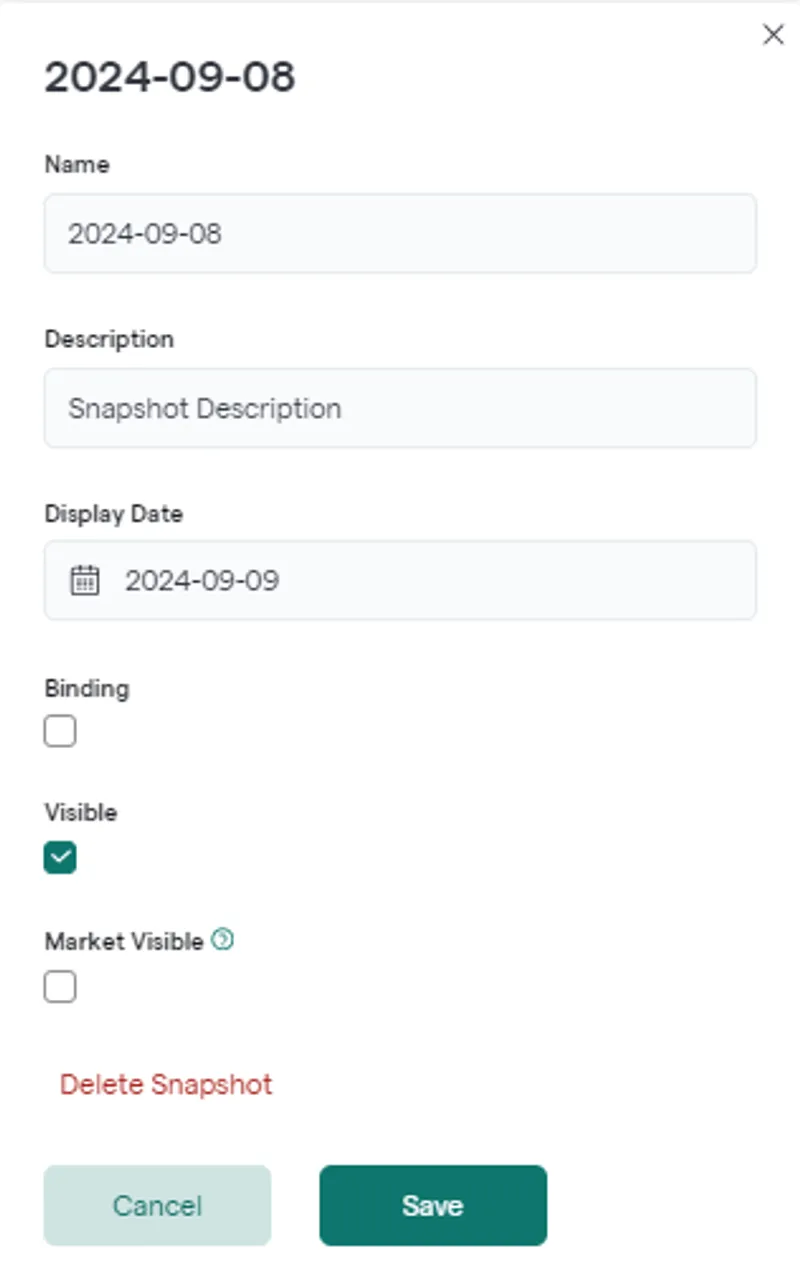
Binding: After renewal, when you store the binding SOV.
Visible: A snapshot that will be visible to non-admins (excluding the markets).
Market Visible: For submission to the markets.