Analyze changes
Last updated: June 16, 2026
Compare two sets of portfolio data to see what's changed and how those changes affect the portfolio as a whole.
Change Analysis Video:
Analyze changes on the Archipelago
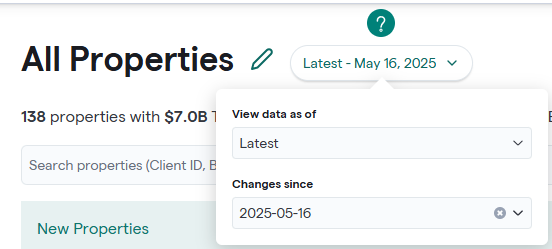
In a view, open the Latest dropdown menu and select the snapshot you want to compare the current portfolio data to.
The platform highlights differences directly within the grid and organizes properties into the following categories:
New — Properties that have been added since the selected snapshot.
Ongoing — Properties that exist in both datasets and have changed data.
Disposed — Properties that existed in the previous dataset but are no longer present.
No Change — Properties with no detected updates. You can select any status card to filter the grid and focus only on that category of properties.

Understand Change Indicators
Cells within the grid are color-coded to make updates easier to identify:
Green — New data has been added.
Yellow — A value has been modified. Hover over the cell to view the previous value.
Red — Data has been removed.
Clear — No change detected.
These visual indicators allow you to quickly scan the portfolio and locate updates without manually comparing datasets.
Filter Changes by Provenance
Use the Provenance Types dropdown to filter updates based on the origin of the data. This allows you to understand where specific changes in the portfolio came from.
Available provenance types include:
COPE Prefill
Document enrichment
Mapping Rules
User Edits
Clear here to learn more about📄 Data Additions
Analyze Portfolio Trends with Pivot By
Use the Pivot By tool to summarize value changes across the portfolio. Selecting a field (such as State, Region, or General Occupancy) groups properties and displays a variance summary comparing the selected snapshot with the latest data.


Export Change Analysis Data
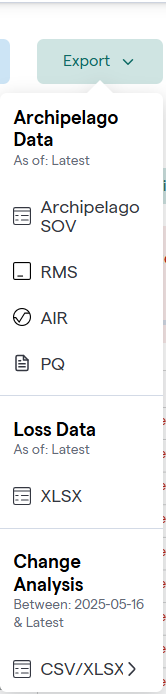
To view change analysis data outside of the platform, use the Export option.
Exports can include:
The full property list with change indicators
Pivot summaries showing grouped change analysis